I got this to work for me using Orca to edit the MSI using the following:
1. Download Visual Studio 2005 Extensions, Version 1.1 for Windows Server 2003 Enterprise Edition 64-bit
A. http://www.microsoft.com/downloads/details.aspx?familyid=3E1DCCCD-1CCA-433A-BB4D-97B96BF7AB63&displaylang=en
2. Save the install file: C:\Temp\VSeWSSv11.exe
3. Extract the MSI using this command: C:\Temp\> VSeWSSv11.exe /Extract
4. Output MSI file: C:\Temp\VSeWSSv11.msi
5. Downloaded Windows® Server 2003 SP1 Platform SDK
A. Installed just Orca
6. Edit MSI using Orca
A. In the Tables column
1. Select: InstallExecuteSequence
2. In the right pane, drop these two rows.
a. X64System
b. WSSNotInstalled
3. Select: InstallUISequence
4. In the right pane, drop these two rows.
a. X64System
b. WSSNotInstalled
B. Save MSI
7. Run edited MSI and follow the prompts.
Hope this helps someone else, it sure did for me!
Thursday, August 21, 2008


Monday, August 4, 2008
Where is the change log?
Shane today in class was looking for where the SharePoint change log is. I did a quick search and found a decent answer on MSDN with detail on Change Log Freshness...
"The Change Log is a physical table in each content database, and each transaction writes to the log." The Change Log recevied by hitting the lists web service http://
Found a great WSS 3.0 web service one page quick reference on Look Alive blog which I'm sure came from across the various MSDN pages.
Note: The change log is security trimmed. "The change log returns a list of SPChange objects for changes that happened, for example, to the following object types:
- Items, files, and folders
- List metadata
- Site metadata
- Security
Tuesday, July 29, 2008
How to change service accounts and service account passwords in SharePoint Server 2007 and in Windows SharePoint Services 3.0
This article describes how to change the passwords for service accounts in Microsoft Office SharePoint Server 2007 and in Microsoft Windows SharePoint Services 3.0. Use the procedure in the "More Information" section to update the passwords if the passwords for service accounts expire.
http://support.microsoft.com/kb/934838
http://support.microsoft.com/kb/934838
Monday, July 28, 2008
Deleting A Web Part
It is important to realise the difference between Closing and Deleting a Web Part. By default the Reminder Web Parts will not let you Close them for reasons explained below. Therefore you must delete them form a page instead.
Deleting a Web Part
To Delete a web part you must first Select Modify Shared Page > Design This Page

You can then select Delete from the Web Parts Menu
Note - Reminder Web Parts will not have a Close menu item for reasons described below.

Closing a Web Part
By default SharePoint Reminder Web Parts will not allow you to close them, although you can change this. Closed web parts are often mistaken for Deleted Web Parts. If you Close rather than Delete a web part you will receive a warning in your servers event log.
You can then delete the web part by Adding it back onto the page and then deleting it or by using the Web Part Maintenance page.
Deleting a closed web part using the Web Part Maintenance page
You can open the Web Part Maintenance view of any web part page by appending ?contents=1 onto the end of the URL? E.g.
http://www.yourserver.com/yoursite/yourpage.aspx?contents=1
You can then delete the web part by Adding it back onto the page and then deleting it or by using the Web Part Maintenance page.
Deleting a closed web part using the Web Part Maintenance page
You can open the Web Part Maintenance view of any web part page by appending ?contents=1 onto the end of the URL? E.g.
http://www.yourserver.com/yoursite/yourpage.aspx?contents=1
The following page will open

You can the web part that has been closed (Open on page = No) and delete it by selecting the checkbox and pressing Delete

Adding a closed web part back onto a page in order to Delete it
You can select the Close command from a Web Parts Menu.
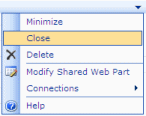
You can select the Close command from a Web Parts Menu.

The web part is not actually deleted from the page, it is removed from the Visible area of the page and placed in the Web Part Page Gallery.
To Delete this web part completely you would drag it back onto the page and perform the steps for Deleting A Web Part above.
To Delete this web part completely you would drag it back onto the page and perform the steps for Deleting A Web Part above.

Sharepoint Site : ACCESS DENIED

Having Problem all domian user ubable to Access the Specific SharePoint site
Solution :
- Open : Central Administrator
- Teb on: Application Management
- Open: Application Security --> Policy for Web Application
- Selct Your Web Application
- Delete the Local Service Account “NT AUTHORITY\LOCAL SERVICE”
- Add Again “NT AUTHORITY\LOCAL SERVICE” with "Full Read" Permissions Only.
Thursday, July 24, 2008
Infrastructure Updates for Windows Server
This morning we released to web three new important updates that affect SharePoint Server 2007, Windows SharePoint Services 3.0, Project Server 2007, Search Server 2008, Search Server 2008 Express and Project Professional 2007.
The Infrastructure Update for Microsoft Office Servers (KB951297) applies to:
Microsoft Office SharePoint Server 2007
Microsoft Office Project Server 2007
Microsoft Search Server 2008
Microsoft Search Server 2008 Express
The Infrastructure Update for Windows SharePoint Services 3.0 (KB951695) applies to:
Windows SharePoint Services 3.0
The Infrastructure Update for Microsoft Office Project 2007 (KB951547) applies to:
Microsoft Office Project Professional 2007
The Infrastructure Update for Microsoft Office Servers contains the new Enterprise Search features that were shipped in Search Server 2008 and Search Server 2008 Express that were are not already in SharePoint Server 2007; this includes Federated Search capability, a unified administration dashboard and several Search core platform performance updates. Read more about the new Search features here.
There are several Content Deployment updates included in both the Infrastructure Update for Microsoft Office Servers and the Infrastructure Update for Windows SharePoint Services 3.0. These updates address many of the top customer reported issues with Content Deployment. Read more about the Content Deployment updates here.
The Infrastructure Update for Microsoft Office Servers (KB951297) and the Infrastructure Update for Microsoft Office Project 2007 (KB951547) include several usability and performance updates for Project Server 2007 and Project Professional 2007 in addition to addressing the top customer reported issues. Read more about the Project Server and Project Professional updates here and in this White Paper.
All three updates contain fixes and product performance updates driven by customer feedback which have resulted in significant platform performance improvements in several areas. There has also been a focus on several core platform components, including improvements to upgrade, future patching and servicing, several targeted updates for workflow, the Business Data Catalog and inter-farm server authentication with Kerberos. For more detailed information please read the KB articles listed further on in this post.
We strongly recommend that you install the updates that apply to you as soon as your patching and maintenance schedules permit.
The updates can be downloaded from the links below:
Infrastructure Update for Microsoft Office Servers (KB951297) - x86
Infrastructure Update for Microsoft Office Servers (KB951297) - x64
Infrastructure Update for Windows SharePoint Services 3.0 (KB951695) - x86
Infrastructure Update for Windows SharePoint Services 3.0 (KB951695) - x64
Infrastructure Update for Microsoft Office Project 2007 (KB951547) - x86
* The updates are applicable to all shipping languages.
Installation Instructions are available from the links below:
Deploy Software Updates for Windows SharePoint Services 3.0
Deploy Software Updates for Office SharePoint Server 2007 - This article also applies to Project Server 2007, SharePoint Server 2007, Search Server 2008 and Search Server 2008 Express.
Install the Infrastructure Update for Microsoft Office Servers (Office SharePoint Server 2007)
Install the Infrastructure Update for Microsoft Office Servers (Search Server 2008)
Related Knowledge Base Articles are available from the links below:
Description of the Infrastructure Update for Windows SharePoint Services 3.0 (KB951695)
Fixes Included in the Infrastructure Update for Windows SharePoint Services 3.0 (KB953749)
Description of the Infrastructure Update for Microsoft Office Servers (KB951297)
Fixes Included in the Infrastructure Update for Microsoft Office Servers (KB953750)
Description of the Infrastructure Update for Microsoft Office Project 2007 (KB951547)
Fixes Included in the Infrastructure Update for Microsoft Office Project 2007 (KB953751)
Please read and familiarize yourself with the installation instructions before you start.
For reference the following products require the following updates to be applied.
If you are running SharePoint Server 2007 you should:
> Install Windows SharePoint Services 3.0 Service Pack 1 (SP1) if you haven’t already
> Install 2007 Microsoft Office Servers Service Pack 1 (SP1) if you haven’t already.
> Install the Infrastructure Update for Windows SharePoint Services 3.0 (KB951695).
Cancel out of the "SharePoint 3.0 Products and Technologies Configuration Wizard". (You CAN run the wizard if you want. It will just save you time if you run it once at the end.)
> Install Infrastructure Update for Microsoft Office Servers (KB951297)
> Run the "SharePoint 3.0 Products and Technologies Configuration Wizard".
If you are running Project Server 2007 you should:
> Install Windows SharePoint Services 3.0 Service Pack 1 (SP1) if you haven’t already
> Install 2007 Microsoft Office Servers Service Pack 1 (SP1) if you haven’t already.
> Install the Infrastructure Update for Windows SharePoint Services 3.0 (KB951695).
Cancel out of the "SharePoint 3.0 Products and Technologies Configuration Wizard". (You CAN run the wizard if you want. It will just save you time if you run it once at the end.)
> Install Infrastructure Update for Microsoft Office Servers (KB951297)
> Run the "SharePoint 3.0 Products and Technologies Configuration Wizard".
You should also then install the Infrastructure Update for Microsoft Office Project 2007 (KB951547) on all Project Professional 2007 client PC’s.
If you are running Search Server 2008 or Search Server 2008 Express you should:
> Install the Infrastructure Update for Windows SharePoint Services 3.0 (KB951695).
> Cancel out of the "SharePoint 3.0 Products and Technologies Configuration Wizard". (You CAN run the wizard if you want. It will just save you time if you run it once at the end.)
> Install Infrastructure Update for Microsoft Office Servers (KB951297)
> Run the "SharePoint 3.0 Products and Technologies Configuration Wizard".
If you are running Project Professional 2007 you should Install the Infrastructure Update for Microsoft Office Project 2007 (KB951547).
The installation process will incur server and farm downtime that you will need to plan for – updates should be installed on all servers in a farm.
Related blog posts:
The SharePoint ITPro documentation team blog – Infrastructure Updates
Office Sustained Engineering blog – Announcing Availability of Infrastructure Updates
Get the Point, Microsoft Office SharePoint Blog - What’s new in the MOSS 2007 Infrastructure Update?
Thursday, July 17, 2008
Principles of Planning and Design: Architecture Blueprints
The Architecture Blueprints are organized at an architecture level in order to provide IT professionals with a common understanding of overriding principles prior to leveraging guidance on specific IT services. The guides relevant to the IT services are provided in a modular fashion to make the overall documentation set more accessible and consumable.
Subscribe to:
Posts (Atom)